

Plane AI Pro
Self-hosted Plane instances (Commercial Edition)
If you're running a self-hosted instance of Plane, you'll need to first configure Plane AI services to get it working. Follow this setup guide first to use Plane AI.
Plane AI is a built-in AI layer embedded throughout the product. It is not a generic chatbot bolted on to the side. It understands your workspace: your projects, work items, cycles, modules, pages, and members. It can answer questions about your work, create and update work items, generate charts from workspace data, draft and edit page content in real time, find duplicate work items, suggest labels, and filter work items using plain English.
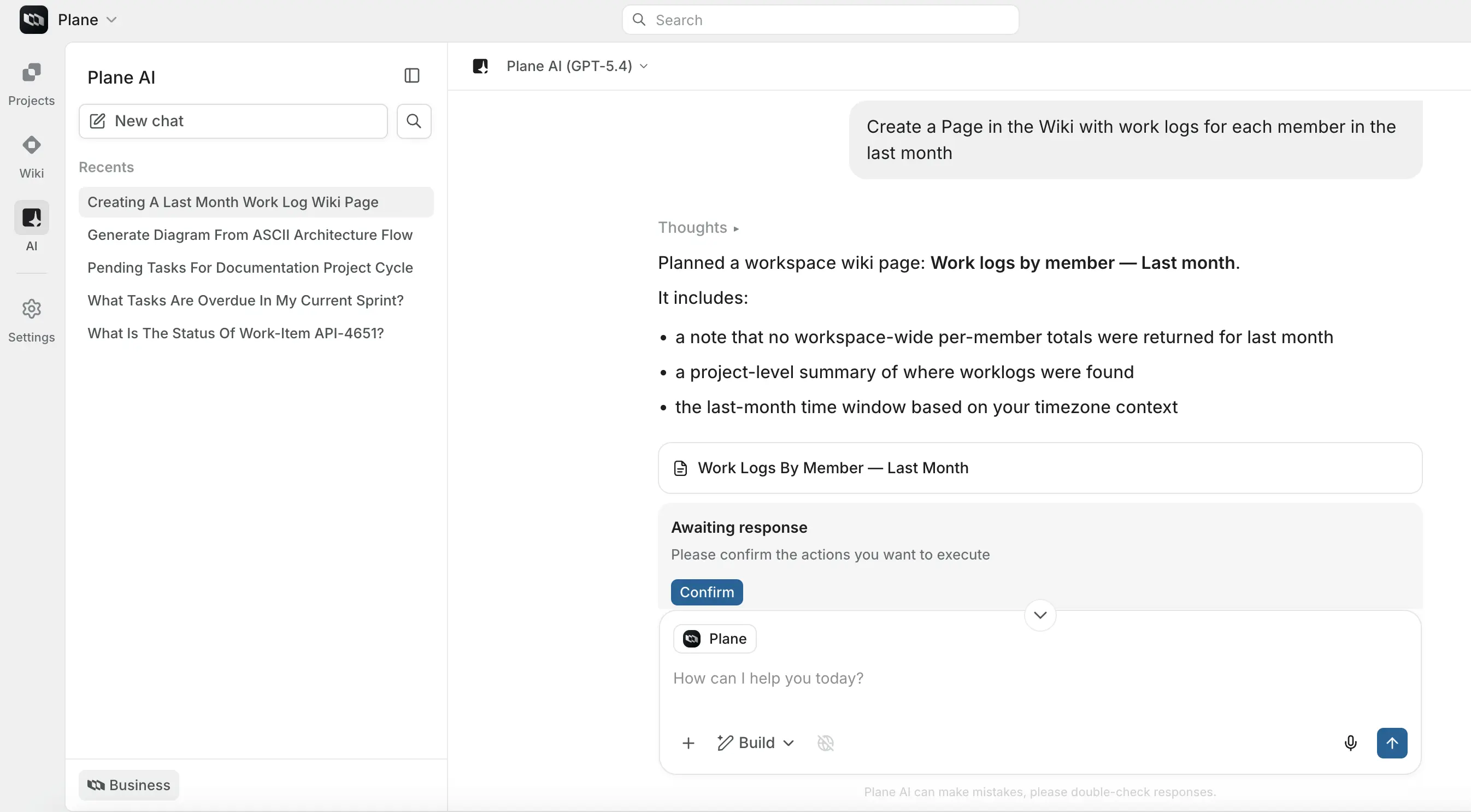
Plane AI understands your workspace - work items, projects, cycles, modules, members, pages, comments, and more. When you ask something or give it a task, it draws from your actual data, not generic knowledge. It can also search the web and connect to external tools like GitHub and Slack through MCP connectors.
Enable Plane AI for a workspace
- Go to Workspace Settings → Plane AI.
- Toggle on Turn on AI for this workspace.
Once enabled, Plane AI features become available to workspace members based on which capabilities your plan and server configuration include. Guest users cannot access any Plane AI features.
Open Plane AI
Click the AI Assistant in the top navigation to open the chat panel. It slides in on the right side of the screen. Drag the left edge to resize it.
To use the full-page view, click the AI button on the siderail. The full-page view shows your conversation history in a left sidebar alongside the active chat.
Choose a mode
Every conversation runs in one of three modes. Switch modes from the dropdown in the chat input before sending your message.
The three modes reflect a deliberate safety model. Project management data is consequential - moving the wrong work items into the wrong sprint, bulk-reassigning work to the wrong person, or archiving things that shouldn't be archived are mistakes that are annoying to undo and visible to everyone. The modes give you control over how much autonomy Plane AI has, depending on how certain you are of what you want.
Ask
Ask is for questions and information retrieval. Plane AI searches your workspace and answers in natural language. It does not create or modify anything - it only reads.
Use Ask when you want to understand something: "What's blocking the login flow?", "Which high-priority issues are unassigned?", "Summarize what shipped this week in the backend project."
Build
Build is for creating and updating things. Plane AI plans a set of actions, shows them to you as action cards before executing anything, and waits for your confirmation. Nothing in your workspace changes until you confirm each action. You can edit or cancel individual actions before confirming.
The review step exists because AI can misread intent, especially on bulk or destructive operations. Showing you the plan before executing means you can catch misunderstandings before they become real changes. This is particularly important for prompts like "close everything from last sprint" or "reassign all of Alice's issues" where the blast radius of a wrong interpretation is large.
Use Build when you want to create work items, update statuses, assign members, move work into cycles or modules, log time, or make bulk changes - with full review before anything happens.
Autopilot
Autopilot works like Build but skips the review step. Actions execute immediately when Plane AI finishes planning. You see a record of what was done after the fact.
Autopilot makes sense when the task is narrow, the instructions are precise, and the consequence of a small error is low. For open-ended or high-impact tasks, Build is safer.
Use Autopilot for clearly scoped, unambiguous tasks. Be specific - vague prompts can produce unexpected results with no review step to catch them.
Ask questions about your workspace
In Ask mode - and as the retrieval step in Build and Autopilot - Plane AI has access to the following data:
- Work items and all their properties: state, assignees, labels, priority, type, dates, descriptions, comments, history
- Projects, cycles, modules, views, teamspaces, and initiatives
- Pages and their full content
- Members and their workspace roles and assignments
- Plane's own documentation (for help questions)
- The web, when web search is enabled
You can ask broad or narrow questions:
- "What did the team ship last week?"
- "Which issues are In Progress but have no assignee?"
- "What's blocking the API migration?"
- "Who is working on the most issues right now?"
- "Summarize the onboarding module"
- "Are there any overdue cycles?"
Suggestion tiles
When you open a new chat, a Suggestions section appears in the conversation area with a list of prompt ideas. These are fetched dynamically from Plane AI based on the current context - the active mode, the workspace, and which project or entity you're focused on. Click any suggestion to send it as your first message. All suggestions are disabled while Plane AI is generating a response.
Thinking panel
As Plane AI works through a complex question, it shows a Thinking... panel above the answer. This is its internal reasoning - how it's planning the retrieval, what it's considering, and how it's arriving at its answer. You can expand or collapse it. The final user-facing answer appears below it.
The thinking panel is separated from the answer deliberately. For most questions you only care about the result, so it collapses by default and stays out of the way. But when an answer surprises you or seems wrong, the thinking panel lets you see exactly what the AI was doing - which tools it called, what data it found, and how it reasoned to that conclusion. This makes it easier to understand whether the problem was a bad query, missing data, or an AI error.
Focus the AI on a project or workspace
Use the context selector (the @ Add context button in the chat input) to set the scope Plane AI searches. Select a specific project to keep answers focused, or select the whole workspace for cross-project questions. The active context appears as a pill in the input field. You can also turn off workspace context entirely for general questions - Plane AI answers faster when it's not searching your data.
When workspace context is on, every query goes through a retrieval phase - Plane AI searches work items, pages, and other entities before forming an answer. That retrieval takes time and adds to the response latency. For questions that don't need Plane data ("Help me write a decision document structure"), turning context off routes directly to the language model and responds noticeably faster.
Enable web search
The Globe icon in the chat input footer toggles web search on and off. When web search is on, the icon is highlighted and the tooltip reads "Disable web search". When off, the icon is dimmed and reads "Enable web search". If the currently active model doesn't support web search, the icon shows as GlobeOff, is grayed out and non-interactive, and the tooltip reads "Web search is not available for this model".
Web search is only available for OpenAI and Anthropic models. It is not available for custom or self-hosted models.
Web search is a provider-level capability, not something Plane AI adds on top. OpenAI provides it through a dedicated search-enabled model; Anthropic exposes it as a tool in its API. A custom self-hosted model - a Llama instance running on your infrastructure, for example - doesn't have a mechanism to make live web requests. Routing web queries through a proxy would require building that infrastructure separately, which is outside the scope of the integration.
@Mentions for specific context
You can pull specific items into the AI's context by mentioning them in your message. Plane AI resolves the mention in real time and includes the current state of the item in the query. Supported entity types:
- Work items
- Projects
- Cycles
- Modules
- Pages
- Users
- Labels
- States
- Issue views
- Teamspaces
- Initiatives
Example: "Can you summarize the current status of @PROJ-123 and who is assigned?"
Plane AI always fetches fresh data for mentions - not cached.
Fetching fresh is an intentional choice. Because Plane data changes constantly - someone closes an issue, a sprint gets updated, an assignee changes - a cached snapshot would frequently be stale. Fresh fetching means the AI's answer reflects the actual current state of your workspace at the moment you ask.
Clarification requests
If your query is ambiguous or missing a required detail, Plane AI will ask for clarification rather than guessing. It shows candidate interpretations and lets you select the one you meant. The query then re-runs with that clarification applied.
Clarification is especially important in Build and Autopilot modes. Guessing wrong on a retrieval question costs you a bad answer; guessing wrong on an action can mean creating or changing the wrong things at scale. Asking before acting is the more conservative choice when the cost of a wrong interpretation is high.
Charts and data visualization
Plane AI can generate charts directly in the chat window from your workspace data. When you ask a question that's best answered visually, it produces the chart inline in the response.
Four chart types are available:
Bar chart
Shows counts or values across categories. Useful for: work item counts by state, workload by assignee, issues by priority.
Example prompt: "Show me how many open issues each team member has."
Pie chart
Shows proportional breakdowns. Useful for: priority distribution, state composition, work item type split. Zero-value segments are automatically excluded.
Example prompt: "What's the breakdown of issue priorities in the backend project?"
Line chart
Shows trends over time, with support for multiple series, fill areas, dashed lines, and data point markers. Useful for: burndown charts, velocity trends, daily or weekly completion rates.
Example prompt: "Show me the burndown for the current cycle."
Stacked bar chart
Shows values broken down by a second dimension. Useful for: states by assignee, priorities by module, issue types per sprint.
Example prompt: "Show me work items by state for each assignee."
Charts render with tooltips and responsive sizing. You can ask follow-up questions about a chart - for example, "Now break that down by priority" - and Plane AI will generate a new chart.
Cycle metrics and analytics
When asking about a cycle, Plane AI can retrieve detailed faceted metrics rather than just a summary. You can ask for any combination of:
- Summary: Total completed vs. open work items
- Scope changes: How many items were added or removed from the cycle
- By state: Breakdown of work items by state
- By assignee: Breakdown by team member
- By priority: Breakdown by priority level
- Burndown: Daily progress over the cycle duration
- Work item list: The actual issues in the cycle with their current states
Example prompts: "Show me the burndown for Sprint 14", "How has the scope of the current cycle changed?", "Break down the active cycle's issues by assignee."
Create and update things (Build and Autopilot)
In Build and Autopilot mode, Plane AI can take a wide range of actions across your workspace. Describe what you want in natural language - it handles the translation to specific operations.
What Plane AI can create and update
Work items
- Create new work items with any combination of: title, description, state, priority, assignees, labels, type, start date, due date, estimate, parent (creates a sub-issue), cycle, module
- Update any property on existing work items
- Assign or unassign members
- Add or remove labels
- Archive or unarchive work items
- Add comments
- Log time worked (worklogs)
- Create relationships between work items: duplicate, related, blocking, blocked by, and more
- Add or remove subscribers
- Apply custom properties
- Upload and attach files
- Create sub-work items under any existing work item
Cycles
- Create cycles with name, dates, and description
- Add work items to a cycle or remove them
Modules
- Create modules
- Add work items to a module or remove them
Pages
- Create new pages or nested pages in any project
Labels
- Create new labels and apply them to work items
States
- Define new workflow states
Estimates
- Create story point scales and sizing systems
Intake
- Manage items in the intake queue
Stickies
- Create quick notes
Initiatives
- Organize work by initiative
Teamspaces
- Create team groupings
How Build mode works
- Describe what you want: "Create three sub-work items under PROJ-45 for the auth redesign - one for the login screen, one for token refresh logic, and one for session expiry handling."
- Plane AI plans the actions and shows them as action cards. Each card shows the action type, key details, and what will be created or changed.
- Review the plan. Edit individual cards if something looks wrong. Cancel any action you don't want.
- Click Confirm to execute.
Nothing changes in your workspace until you confirm. You can let some actions execute and cancel others.
After execution, a summary shows which actions succeeded, which failed (with reasons), and links to each created or updated item.
Tips for better results
- Reference specific items: use project names, issue identifiers, member names, or cycle names.
- Describe the outcome, not the steps: "Move all unstarted issues past their due date into next sprint" works better than step-by-step instructions.
- For bulk operations, state the scope clearly: "In the mobile project, assign all unassigned high-priority issues to @alice."
- If Plane AI asks a clarification question, answer it - it needs the missing detail to proceed safely.
Voice input
Click the microphone button in the chat input to start recording. A waveform animation shows that audio is being captured in real time. Click the mic button again to stop, then click the checkmark to send. Plane AI transcribes the audio and adds the text to the input - you can edit it before submitting.
Plane AI requests browser microphone permission on first use. If you see an error, check that your browser has microphone access enabled for the site.
Voice input is available when your workspace admin has enabled it and a transcription API key is configured.
Attach files
Click the paperclip button in the chat input or drag files directly into the chat window. Files appear as previews in the input before you send. Plane AI reads the content and uses it as context for your message - useful for pasting in a spec, a design brief, or any external document you want it to reason over.
For self-hosted Plane instances, file uploads require storage to be configured. If the button does not appear, file uploads have not been enabled on your workspace.
Switch models mid-conversation
Use the model dropdown in the chat header to switch between available LLM models at any point in a conversation. The selected model applies to all subsequent messages in that conversation.
MCP connectors
MCP (Model Context Protocol) connectors extend Plane AI with access to external tools and services. When connectors are active, Plane AI can pull data from and take actions in those systems as part of its response - without leaving Plane.
Connectors are only available in Build and Autopilot modes.
This restriction matches the purpose of each mode. Ask mode is read-only by design - adding action-capable connectors to it would break that guarantee. MCP connectors are fundamentally about doing things: posting to Slack, creating a GitHub issue, querying a customer record. Those are actions, not lookups, and they belong in the modes that are designed for action with the appropriate level of oversight.
See MCP connectors for the full list of available connectors, how to connect them, and how authentication works.
Plane AI in pages
Plane AI has a separate, deep integration inside the page editor. These features are distinct from the AI chat - they work directly within the editing surface.
The AI prompt input (page sidecar agent) Business
The page editor includes an AI prompt input at the bottom of the editor. It shows a text field labeled "Ask AI to edit this page…" with the active model name. Type a free-form instruction describing what you want done to the page - for example:
- "Write an executive summary at the top"
- "Add a risks section after the Timeline section"
- "Rewrite the introduction to be more concise"
- "Draft three acceptance criteria for the feature described above"
Plane AI streams its response directly into the editor as it generates. You see the content appear in real time. The input shows a Thinking... state while the AI plans, then a Persisting... state as it writes the content.
Inline suggestions - accept or reject per block
As Plane AI writes content into the page, each generated segment appears as a proposal - highlighted text that has not yet been committed. A floating control panel appears at the bottom of the editor showing how many proposals are pending (for example, "2 / 5").
You can:
- Accept the current proposal - commits it to the page
- Reject the current proposal - removes it without changing the page
- Navigate between proposals with arrow controls
- Accept all proposals at once
- Reject all proposals at once
Keyboard shortcuts: Cmd+Opt+Enter to accept, Cmd+Opt+Backspace to reject, Cmd+Opt+Up/Down to navigate.
This means Plane AI can propose changes to multiple sections simultaneously and you decide block by block what gets committed. Changes you reject leave the original text untouched.
The per-block proposal model is intentional. When you give Plane AI a broad instruction - "add an executive summary, a risks section, and a glossary" - it may generate all three at once. Without per-block control, you'd be forced to accept or reject the entire output. The proposal model lets you keep the summary, reject the risks section draft, and accept the glossary without manually editing anything. You're reviewing AI output the same way you'd review a colleague's tracked changes in a document.
Editing selected text with AI
Select any text in the page editor to open the AI editing menu. The following actions are available:
| Action | What it does |
|---|---|
| Paraphrase | Rewords the selected text while keeping the meaning |
| Simplify | Makes the text easier to read |
| Elaborate | Expands the selected text with more detail |
| Summarize | Condenses the selected text to key points |
| Get title | Generates a title based on the selected content |
After Plane AI generates a result, you can:
- Replace selection - swaps the original text with the AI output
- Add to next line - inserts the output below the selection (keyboard shortcut: Cmd+Enter)
- Regenerate - runs the action again for a different result
Before regenerating, you can set a tone: Default, Professional, or Casual. The tone affects the style of the next generation.
AI blocks Business
AI blocks are purpose-built content blocks you insert into a page and ask Plane AI to fill. Insert one via a slash command or the page block menu, then type your prompt inside the block - for example, "Draft a sprint retrospective template" or "Write a three-column comparison of these approaches." Plane AI generates the content directly in the block.
Once content is generated, you can revise it - ask Plane AI to elaborate or shorten it - or regenerate it entirely.
AI blocks are useful for generating first drafts, structured templates, or any section where you want to start from AI-generated content rather than a blank slate.
Page summary
Open any page and look for the AI summary block at the top of the content area. If no summary exists, generate one. The summary appears in a highlighted block.
Controls on the summary block:
- Regenerate - refreshes the summary from the current page content
- Delete - removes the summary block from the page
If the page has been edited since the summary was generated, a stale indicator appears telling you the summary may be out of date.
AI in the work item editor
Plane AI surfaces two features directly inside the work item creation and edit form - in the description field - without going to the chat.
Generate a description automatically
When you've entered a title for a work item and an LLM is configured, an I'm feeling lucky button (sparkle icon) appears below the description editor. Clicking it sends the work item title to Plane AI with the instruction to generate a proper description. The description appears directly in the editor field. While generating, the button shows "Generating response" and is disabled.
If the title is too vague for Plane AI to work with, you'll see: "Work item title isn't informative enough to generate the description. Please try with a different title."
Custom AI prompt on the description
The AI button (sparkle icon) next to the description field opens a prompt panel. From here you can give Plane AI any instruction about the work item content:
- If the description is already written: the panel shows the existing content and prompts you to tell AI what to do with it - rephrase, expand, summarize, translate, reformat, or anything else.
- If the description is blank: the panel prompts you to ask AI anything.
Type your instruction and press Enter (or click Generate response). The AI-generated result appears below your instruction. You can then:
- Click Use this response to apply it to the description editor.
- Click Generate again to try again with the same instruction.
- Click Close to discard and return to the form.
A consent note is shown before any response is generated: "By using this feature, you consent to sharing the message with a 3rd party service."
Duplicate detection
When you create a work item, Plane AI automatically checks whether similar issues already exist in your workspace. If it finds likely matches, a panel appears before the issue is saved.
The panel shows up to five potential duplicates, each with the issue ID, title, and a brief excerpt. You can:
- Select the issues that are duplicates and click Mark as duplicate - this links them as duplicates.
- Discard - dismisses the panel if none are actual duplicates (this also sends feedback to improve future predictions).
Duplicate detection is proactive - you don't trigger it manually. It runs every time a work item is created.
Duplicate detection runs at creation time because that's when it matters most. Once an issue is saved and work begins on it - someone assigns themselves, leaves a comment, adds it to a sprint - merging or closing it becomes disruptive. Catching the duplicate before it's saved costs nothing; catching it a week later costs everyone's attention. The proactive check is what makes it useful rather than just a search you have to remember to do.
Plane AI detects similarity through vector search, not keyword matching. It converts the work item title and description into a mathematical representation and finds existing items whose representation is mathematically close. This means it can find "fix login timeout after inactivity" as a potential duplicate of "session expires too quickly on the web app" even though they share no words in common.
Label prediction
When you create or edit a work item, Plane AI automatically suggests labels based on the title and description as you type. After a short pause (about 1.5 seconds), a suggestion strip appears at the top of the work item form with a gradient background and a shimmer animation while loading. It shows the header "AI suggestion for label" followed by one chip per suggested label, each with a + icon.
- Click any label chip to apply just that label.
- If more than one label is suggested, an Apply all button appears at the end of the strip.
Label prediction is fully automatic - there is no button to trigger it. If you don't want a suggestion, ignore the strip and pick labels manually as you normally would.
Label prediction requires that you have permission to create labels in the project.
The 1.5-second delay before predictions appear is deliberate. Triggering on every keystroke would generate predictions while you're still mid-sentence, producing irrelevant suggestions and wasting API calls. The debounce waits until you've paused - a signal that you've finished a thought - before asking the model for suggestions. The result is predictions that are based on something close to your final title and description, not a fragment of them.
Convert a response to a page
Any Plane AI response can be saved as a Plane page. Look for the Convert to Page button below the AI message. Clicking it creates a new page in your workspace with the response content. Use this to save summaries, generated plans, research answers, or any AI output you want to keep and share.
Regenerate a response
If you're not satisfied with an answer, click Regenerate below the latest message. Plane AI runs the same query again and produces a new response.
Give feedback
Each AI response has thumbs up and thumbs down buttons. Thumbs up records positive feedback with no prompt. Thumbs down opens a dialog where you can add a note describing what went wrong. Both types of feedback are tracked and used to improve Plane AI over time.
Manage conversations
History
All conversations are saved. Access them from the left panel in the full-page view. Conversations are listed with their auto-generated titles and timestamps. Click any conversation to continue it. Use Load More to page through older conversations.
Star
Star conversations you want to keep easy to find. Starred conversations appear at the top of the list in the Favorites section.
Search
Use the search input in the conversation sidebar to filter conversations by title.
Rename
Conversations are auto-titled from your first exchange. To rename, open the conversation options and select Rename.
Delete
Open the conversation options and select Delete. Deleted conversations cannot be recovered.
Models
Plane AI gives you a choice of models from OpenAI and Anthropic. You pick the model for your conversation; Plane AI handles everything else internally.
Select a model
The model switcher is the dropdown in the top-right corner of the Plane AI chat, labeled "Plane AI (Model Name)". Click it to see the available models and switch. The selected model applies to all subsequent messages in the current conversation - earlier messages stay as they were.
You can switch models at any point mid-conversation.
Available models
| Model | Provider | Context window | Web search |
|---|---|---|---|
| GPT-5.4 | OpenAI | 272k tokens | Yes |
| GPT-5.2 | OpenAI | 400k tokens | Yes |
| Claude Sonnet 4.6 | Anthropic | 200k tokens | Yes |
| Claude Sonnet 4.5 | Anthropic | 200k tokens | Yes |
All four models are available on Plane Cloud. GPT-5.4 is the default.
Choosing between models
The models differ in how they reason and write, not just in benchmark scores. GPT-5.4 tends to be more structured and direct; Claude Sonnet tends to be more nuanced and conversational. Neither is universally better. If a response isn't landing the way you want, switching models and regenerating is the fastest way to get a different perspective.
GPT-5.2 has the largest context window of the four, which matters when you're working with very long pages, large work item lists, or extended conversations where Plane AI needs to hold a lot in view at once.
Both Claude models support Anthropic's prompt caching. Every Plane AI request carries a substantial system prompt - workspace context, tool definitions, conversation history. Processing this from scratch on every request adds latency. Prompt caching lets Anthropic reuse the processed version of the stable parts of that prompt across requests in the same session, producing faster responses on long conversations without any action needed from you. Caching is session-scoped and ephemeral - nothing is stored between sessions.
How Plane AI uses models internally
The model you select handles your main conversation. Separately, Plane AI routes background tasks - generating chat titles, running duplicate detection, translating natural language to filter queries, handling intermediate reasoning steps - to smaller, faster models that don't need frontier-level capability. These internal tasks are invisible to you and are not affected by your model selection.
This is why operations like title generation and duplicate detection feel instant even when the main model takes longer: they run on a lightweight tier built for speed.
Available providers and models
Semantic search and the embedding model
Separate from the chat model, Plane AI uses an embedding model for semantic search - finding relevant work items, pages, and comments by meaning rather than exact keyword match. This model is not user-selectable and runs automatically in the background whenever Plane AI searches your workspace.
The embedding model converts text into vectors - mathematical representations of meaning. When Plane AI searches for relevant content, it compares the vector of your query against the vectors of everything in your workspace. Items that are semantically similar score as close matches even if they share no words in common. This is why Plane AI can surface "session timeout bug" when you ask about "login expires after inactivity" - the concepts are the same even though the phrasing is different, and vector similarity catches it where keyword search would not.
What Plane AI can and cannot access
Can access:
- All work items, projects, cycles, modules, labels, states, views, teamspaces, and initiatives your account has access to
- Page content in projects you're a member of
- Member profiles and assignments
- Plane's own documentation
- The web (when web search is enabled)
- External tools connected via MCP connectors
Cannot access:
- Private pages you don't own
- Workspaces you are not a member of
- External systems not connected via MCP
Constraints
- Guest users cannot use any Plane AI feature.
- Autopilot mode must be explicitly enabled by your workspace plan and configuration.
- Voice input requires browser microphone permission and a server-side Groq API key.
- File uploads require cloud storage (AWS S3 or compatible) to be configured.
- MCP connectors require per-user authentication setup before use. See MCP connectors.
- Label predictions only appear when the flag is enabled and the user has label create permission in the project.
- Natural language filter conversion may fail for ambiguous or unsupported queries - the error message will indicate what went wrong.
- Chart generation is triggered by the AI based on the nature of your question - you cannot force a specific chart type, but you can ask for one explicitly.
- The LLM provider and model options available in the model switcher are determined by your workspace's server configuration, not by individual users.
- Workspace-level Plane AI must be enabled before any per-feature flags take effect.